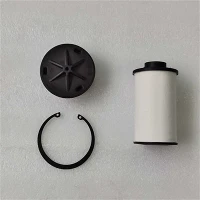

Hey there! As a supplier of the T18102A, I've seen my fair share of common errors with this piece of equipment. And let me tell you, troubleshooting can be a real headache sometimes. But don't worry, I'm here to share some tips and tricks to help you deal with those pesky issues.
First off, let's talk about what the T18102A is. It's a high - performance machine used in a variety of industrial settings. But like any complex piece of gear, it can run into problems.
Error 1: Power - On Failures
One of the most common issues is the T18102A not powering on. When you hit that power button and nothing happens, it can be super frustrating.
The first thing you should do is check the power source. Sounds simple, right? But you'd be surprised how often it's just a loose power cable. Make sure the power cord is firmly plugged into both the machine and the outlet. If you're using a power strip, check that it's turned on and not overloaded.
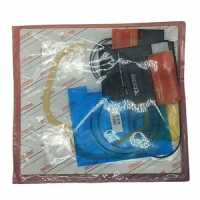
If the power source seems okay, then it could be a problem with the internal power supply. This is a more serious issue. Sometimes, the power supply unit (PSU) can fail due to overheating or a manufacturing defect. In this case, you might need to replace the PSU. We offer the Overhaul Kit T15102A 01J Transmission which can be very helpful in such situations. It comes with all the necessary parts to give your machine a fresh start.
Error 2: Communication Errors
Another common headache is communication errors. This usually shows up as the T18102A not being able to connect to other devices in the network.
First, check the network cables. A loose or damaged cable can prevent proper communication. Look for any visible signs of wear and tear on the cable, like frayed ends. If you find a damaged cable, replace it right away.
Next, check the network settings on the T18102A. Make sure the IP address, subnet mask, and gateway are all set correctly. Sometimes, a simple misconfiguration can cause these communication problems. If you're still having issues, it could be a problem with the network interface card (NIC). You might need to update the NIC drivers or even replace the NIC if it's faulty.
Error 3: Overheating
Overheating is a big deal for the T18102A. When the machine gets too hot, it can start to malfunction.
Check the cooling fans. They should be spinning freely. If a fan is not working, it could be blocked by dust or debris. Use a can of compressed air to blow out any dust from the fans and the ventilation openings. You can also check the temperature sensors in the machine. Sometimes, a faulty sensor can give false readings, making the machine think it's overheating when it's not.
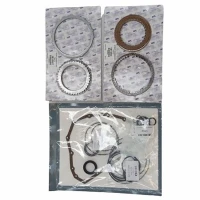
If the overheating persists, it might be time to look into the cooling system more deeply. You could consider upgrading the cooling fans or adding additional cooling components. We have some great products that can help with this. For example, the 62TE - 68014103AB - OEM Pump Overhaul Kit 68014103AB 62TE Transmission can improve the overall cooling and performance of the machine.
Error 4: Software Glitches
Software glitches are also quite common. You might notice that the T18102A is freezing, crashing, or not responding to commands.


The first step is to restart the machine. Sometimes, a simple reboot can clear up minor software issues. If that doesn't work, check for software updates. The manufacturer often releases updates to fix bugs and improve performance. Make sure you're running the latest version of the software.
If the problem still exists, it could be a corrupted software file. In this case, you might need to reinstall the software. But be careful, as this can sometimes lead to data loss. So, make sure you have a backup of all your important data before you proceed.
Error 5: Component Failures
Components inside the T18102A can fail over time. This could be anything from a hard drive failure to a malfunctioning memory module.
If you suspect a component failure, start by running diagnostic tests. Most modern machines have built - in diagnostic tools that can help you identify the faulty component. For example, if you think the hard drive is failing, run a disk check utility.
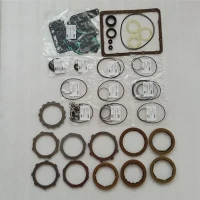
Once you've identified the faulty component, you'll need to replace it. We have a wide range of replacement parts available, like the Master Kit 04400B 03 - 71 03 - 72LE Transmission, which contains many essential components for the T18102A.
Tips for Preventive Maintenance
To avoid these common errors in the first place, preventive maintenance is key.
- Regular Cleaning: Keep the T18102A clean. Dust and debris can accumulate inside the machine and cause all sorts of problems. Use a soft brush or compressed air to clean the internal components regularly.
- Software Updates: Always keep the software up - to - date. This not only fixes bugs but also adds new features and security patches.
- Monitoring: Keep an eye on the machine's performance. Check the temperature, fan speeds, and other vital signs regularly. If you notice any unusual behavior, address it right away.
Conclusion
Troubleshooting the common errors of the T18102A can be a challenge, but with the right knowledge and tools, it's definitely doable. By following the steps I've outlined above, you can quickly identify and fix most issues.
If you're still having problems or if you need replacement parts, we're here to help. We're a reliable supplier of T18102A parts and overhaul kits. Feel free to reach out to us for more information or to discuss your procurement needs. We're always happy to assist you in getting your T18102A up and running smoothly again.
References
- Manufacturer's manual for T18102A
- Industry - standard troubleshooting guides for industrial machines